
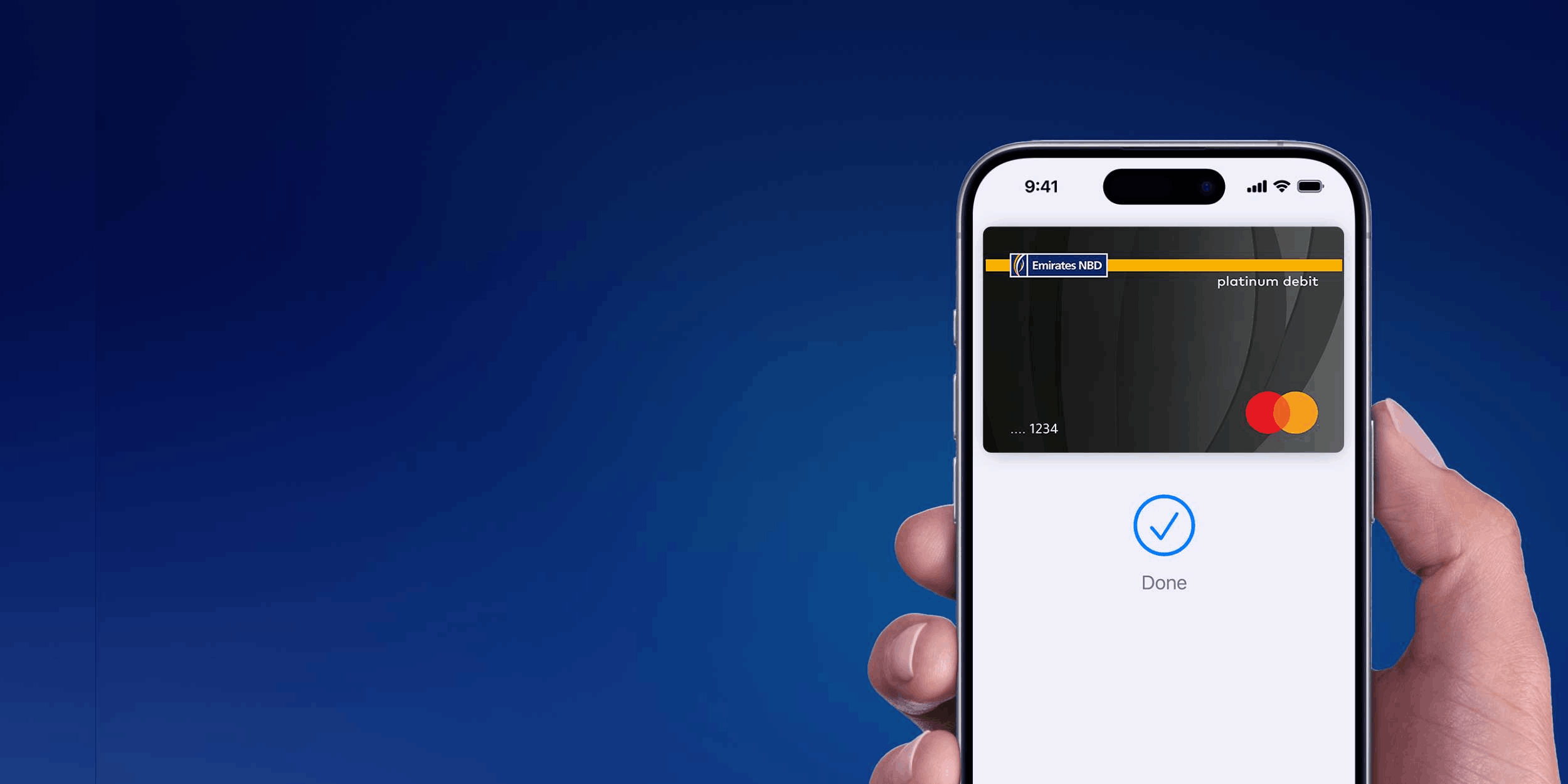
Why Apple Pay?

Fast

Easy & Fast

Just tap and go. Make purchases in seconds, no need to carry your card

Security

Secure & Private

Your card number is never shared with merchants or stored on your device. Every transaction is authorized using Face ID, Touch ID, or your passcode

Accepted anywhere

Works Everywhere

Pay wherever you see the Apple Pay or Contactless symbol and enjoy a seamless checkout every time

1

How to Add Your Emirates NBD Card

Emirates NBD Mobile App

  • Log in to the Emirates NBD Mobile App.
  • Go to your Cards and click on “Add to Apple Wallet”.
  • Select your preferred Emirates NBD Debit or Credit Card.
  • Verify your card. Once verified, your card is ready to use.

Apple Wallet

  • Open the Wallet App on your iPhone or iPad.
  • Tap “+” to add a new card.
  • Scan your Emirates NBD card or enter the details manually.
  • Verify your card via OTP or Emirates NBD Mobile App.
  • Your card will be instantly added and ready for use.

How to Pay

In Store (with iPhone or Apple Watch)

  • Hold your iPhone near the terminal and confirm with Face ID, Touch ID or passcode.
  • With Apple Watch, double-click the side button and hold near the reader.

Online or In-App

  • Choose Apple Pay at checkout.
  • Confirm your purchase using Face ID, Touch ID, or passcode — done.

2
3

Get Started Now

  • Experience effortless payments with Emirates NBD and Apple Pay.
  • Add your card today and enjoy speed, safety, and simplicity, everywhere you go.

Frequently asked questions

Apple Pay allows you to make secure and easy payments using your iPhone, Apple Watch, iPad, or Mac. Instead of using your physical credit, debit or prepaid card, you can simply hold your device near a contactless payment terminal to complete the transaction.

There is no need to download the app as it is automatically available on iOS devices under the name Wallet”.


Apple Pay works through Near Field Communication (NFC) technology to facilitate contactless payment operations through POS/In-stores. Apple Pay can be used for in-app purchases, and online transactions by subscribing to services like Apple Music, Apple News+, and Apple TV+, buying apps and games from the App Store, and upgrading iCloud storage capacity.

  • Through Emirates NBD Egypt Mobile Banking App: Go to Cards then click on “Add to Apple Pay”, select your preferred Emirates NBD Debit or Credit Card. Verify your card. Once verified, your card is ready to use.
  • Directly through Apple Wallet: Enter the card details manually or scan the front of the card using the camera, then follow the steps that appear in Apple Wallet.
  • Via Apple Wallet: Tap the + icon to add your cards. Locate and select the Emirates NBD icon, then enter your Mobile Banking username and password. Your eligible cards will be displayed automatically, allowing you to add them without manually entering your card details

You will receive a pop-up message with “Invalid card data” and you will need to reenter data accurately.


We apologize for that, please try to enter your card data manually.


All Emirates NBD customers with Apple devices.

  • By logging into Emirates NBD Egypt mobile banking application: Go to Cards then click on “Add to Apple Pay”, select your preferred Emirates NBD Debit or Credit Card. Verify your card. Once verified, your card is ready to use.
  • Via Apple Wallet directly by entering the card data manually or copying the front side of the card through the camera and then following the steps that appear on Apple Wallet.
  • Via Apple Wallet: Tap the + icon to add your cards. Locate and select the Emirates NBD icon, then enter your Mobile Banking username and password. Your eligible cards will be displayed automatically, allowing you to add them without manually entering card details.

Apple Pay works on the following devices:

  • iPhone:
    • Minimum iOS Version: 17.5
    • Minimum Device Model: iPhone XS
  • iPad:
    • iPad Pro, iPad Air 2, iPad mini 4, iPad mini 3
  • Apple Watch:
    • Minimum watchOS Version: 10.5
  • Mac:
    • Minimum macOS Version: 14.5

To pay with iPhone XS or later models:

  • Double-click the side button, authenticate with Face ID, or enter your passcode.
  • hold the top of your iPhone near the point-of-sale terminal until you see the “Done” mark.
  • To pay with an Apple Watch:
    • Double-click the side button and hold the watch display near the point-of-sale terminal until you feel a tap.
  • To pay within apps and websites:
    • Using iPhone, iPad, or Apple Watch, you can use Apple Pay to pay within apps when you see the Apple Pay button.
    • Press the “Buy with Apple Pay” button, follow the instructions on your screen, and confirm the payment. Once the payment is successful, you will see the “Done” mark on the screen.
    • For iPad, use Touch ID or your passcode.
    • For Apple Watch, double-click the side button.

Apple Pay allows you to make secure and easy payments using your iPhone, Apple Watch, iPad, or Mac. Instead of using your physical credit, debit or prepaid card, you can simply hold your device near a contactless payment terminal to complete the transaction.

There is no need to download the app as it is automatically available on iOS devices under the name Wallet”.


Apple Pay works through Near Field Communication (NFC) technology to facilitate contactless payment operations through POS/In-stores. Apple Pay can be used for in-app purchases, and online transactions by subscribing to services like Apple Music, Apple News+, and Apple TV+, buying apps and games from the App Store, and upgrading iCloud storage capacity.

  • Through Emirates NBD Egypt Mobile Banking App: Go to Cards then click on “Add to Apple Pay”, select your preferred Emirates NBD Debit or Credit Card. Verify your card. Once verified, your card is ready to use.
  • Directly through Apple Wallet: Enter the card details manually or scan the front of the card using the camera, then follow the steps that appear in Apple Wallet.
  • Via Apple Wallet: Tap the + icon to add your cards. Locate and select the Emirates NBD icon, then enter your Mobile Banking username and password. Your eligible cards will be displayed automatically, allowing you to add them without manually entering your card details

You will receive a pop-up message with “Invalid card data” and you will need to reenter data accurately.


We apologize for that, please try to enter your card data manually.


All Emirates NBD customers with Apple devices.

  • By logging into Emirates NBD Egypt mobile banking application: Go to Cards then click on “Add to Apple Pay”, select your preferred Emirates NBD Debit or Credit Card. Verify your card. Once verified, your card is ready to use.
  • Via Apple Wallet directly by entering the card data manually or copying the front side of the card through the camera and then following the steps that appear on Apple Wallet.
  • Via Apple Wallet: Tap the + icon to add your cards. Locate and select the Emirates NBD icon, then enter your Mobile Banking username and password. Your eligible cards will be displayed automatically, allowing you to add them without manually entering card details.

Apple Pay works on the following devices:

  • iPhone:
    • Minimum iOS Version: 17.5
    • Minimum Device Model: iPhone XS
  • iPad:
    • iPad Pro, iPad Air 2, iPad mini 4, iPad mini 3
  • Apple Watch:
    • Minimum watchOS Version: 10.5
  • Mac:
    • Minimum macOS Version: 14.5

To pay with iPhone XS or later models:

  • Double-click the side button, authenticate with Face ID, or enter your passcode.
  • hold the top of your iPhone near the point-of-sale terminal until you see the “Done” mark.
  • To pay with an Apple Watch:
    • Double-click the side button and hold the watch display near the point-of-sale terminal until you feel a tap.
  • To pay within apps and websites:
    • Using iPhone, iPad, or Apple Watch, you can use Apple Pay to pay within apps when you see the Apple Pay button.
    • Press the “Buy with Apple Pay” button, follow the instructions on your screen, and confirm the payment. Once the payment is successful, you will see the “Done” mark on the screen.
    • For iPad, use Touch ID or your passcode.
    • For Apple Watch, double-click the side button.

  • Apple Pay does not send the actual card number with transactions. Instead, a virtual card number is used to represent your account information, keeping your card details secure.

For more security, you can use Face ID or Touch ID or your passcode to authorize payments. This ensures that only you can access your Apple Pay.


From iOS 17.5 onward there is no max limit on the number of cards that can be added to Wallet.


To ensure your card’s security, we send an OTP via SMS to your registered mobile number to verify your identity by entering this code in the specified field.

To ensure your card’s security, you need to complete the adding card process through us (and then verification completed within the call).

Adding the card will be locked for few hours and you will need to try adding the card again later.

Yes, you can return to the Wallet app to complete the setup by opening the Wallet app, selecting your card, and choosing the verification method. But this card will not be able to be used for transactions or being default until verification completed.

You can enable notifications by following these steps: Open the Wallet app, select the card, tap the three dots in the circle, select Transaction Notifications, and enable them.

No, Apple Pay is available only for Apple devices.

Yes, Apple Pay can be used for online payments and electronic payment gateways wherever you see the “Pay with Apple Pay” label. (via apps and websites).

If your device is lost or stolen, please call us at 16664, and we will deactivate your card on Apple Pay. We also recommend registering for the Find My iPhone service, which allows you to locate your device’s details in case of loss or theft and disable or delete them and then you can delete/suspend token through iCloud.

Yes, you will transact normally as the token will be still active.

No, you can use Apple Pay currently in merchants and online purchases.

These are the cards that previously added to wallet and now removed.

It means that you entered invalid card data please try again and make sure you entered all card data (card number-CVV-expiry date) correctly.

The same daily purchase limit for the card applies to Apple Pay However, the bank reserves the right to set appropriate limits on Apple Pay transactions based on security protocols.

Yes, subject to the terms and conditions of the cashback and loyalty programs like BONUS and Miles.

Unfortunately, installments (EPP) are not available while using Apple Pay. However, this feature will be introduced in the next phase. In the meantime, you can convert your Apple Pay transactions into installments through calling us on 16664.

Yes, you will be able to view your last 10 transactions within the Wallet (Apple Pay).

No, using Face ID, Touch ID, passcode, or other user biometric authentication is sufficient. There is no minimum transaction amount.

After completing a payment using Apple Pay, the payment will be confirmed on your mobile screen. Additionally, transaction alerts via SMS will continue to be sent to your mobile number registered with the bank.

The service is free for Emirates NBD customers.

Supported eligible card types include Mastercard, Visa, and Meeza.

The card image may not be an exact match, but you can easily identify the card you are using. This does not affect how your card works with Apple Pay.

No, you will need to add your cards separately to Apple Pay on your new device.

Add the card manually to Apple Wallet:

  • Open the Wallet app on your iPhone
  • Tap the “+” button in the top right corner
  • Capture a picture of your card or enter the details manually
  • Follow the on-screen instructions

Add a card via Emirates NBD Egypt Mobile Banking App:

  • Open Emirates NBD Egypt mobile banking app
  • Go to Cards › Add to Apple Pay
  • Select your preferred Emirates NBD Debit or Credit Card
  • Verify your card. Once verified, your card is ready to use
  • Follow the instructions provided by Apple on the screen right side of the transaction summary screen

Add Your Card via Apple Wallet Extension:

  • Open the Wallet app on your iPhone
  • Tap the “+” button in the top-right corner
  • Locate and select the Emirates NBD icon
  • Enter your Mobile Banking username and password
  • Your eligible cards for tokenization will be displayed. Follow the on-screen instructions to add them without manually entering your card details

We apologize for that, prepaid cards are currently not appearing on the mobile application, however you can add your prepaid card directly through Apple Wallet.

This is because you have another paired device to your IPhone such as Apple watch, IPad, or Mac which you can also add your card on it. So, if you add your card on any those devices also you will find the flag turned into “Added to Apple Pay”.

Yes, you can add it through Applet Wallet directly.

From the Wallet:

  • Go to the card details.
  • Tap on the info icon.
  • Tap on “Remove Card.”

From Settings:

  • Open the Settings app.
  • Tap on “Wallet & Apple Pay.
  • Tap on the card you want to remove.
  • Tap on “Remove Card.

From “Find My iPhone” via iCloud:

  • Go to “Find My iPhone” in iCloud.
  • Select your device under “My Devices”.
  • Tap on “Remove” next to the card you want to delete.

From iCloud Settings:

  • Open the Settings app.
  • Tap on “My Devices.
  • Select your device.
  • Tap on “Remove” next to the card you want to delete.

Yes, unpairing the Apple Watch will automatically remove the cards available on it. Cards must be added individually to the Apple Watch for use.

Yes, typically, if a card was removed from a device, you would need to re-add it. You can usually do this through the mobile wallet app, but you’ll need to verify your identity with your bank.

Yes, you can re-add a card after deleting it, though you may have to go through the same verification process with the bank as you did when adding it the first time.

This may happen due to connectivity or system issues. The wallet app may process the payment request, but the terminal may reject the transaction due to problems like insufficient funds, card network issues, or merchant connectivity problems. You should always verify with the bank.

This message usually indicates that there’s an issue with your card or account. You should contact your bank for further assistance.

To initiate the Refund Request:

  • Contact the Merchant: Reach out to the merchant where you made the purchase and request a refund. Provide them with your order number, transaction details, and the reason for the refund.
  • Merchant’s Process: The merchant will process your refund request and initiate the process with their payment processor.
  • Apple’s Role: Refund Processing: Once the merchant confirms the refund, Apple’s payment system will process the refund.
  • Timeframe: The time it takes for the refund to appear in your account can vary depending on the merchant. It typically takes a few business days.

Here’s how to find it:

For iPhone:

  • Open Settings: Open the Settings app.
  • Go to General: Scroll down and tap “General.”
  • Open About: Tap “About.”
  • Locate SEID: Scroll down to find the SEID.
  • Share SEID: Tap and hold the SEID to copy it.

For Apple Watch:

  • Open the Watch App: Open the Watch app on your paired iPhone.
  • Go to General: Tap “General.”
  • Open About: Tap “About.”
  • Locate SEID: Scroll down to find the SEID.
  • Share SEID: Tap and hold the SEID to copy it.

For iPad:

  • Open Settings: Open the Settings app.
  • Go to General: Tap “General.”
  • Open About: Tap “About.”
  • Locate SEID: Scroll down to find the SEID.
  • Share SEID: Tap and hold the SEID to copy it.

For Mac:

  • Open System Settings/Preferences: Click the Apple menu in the top-left corner and select “System Settings” (or “System Preferences” on older macOS versions).
  • Go to Wallet & Apple Pay: Select “Wallet & Apple Pay.”
  • Locate SEID:
  • For a specific card: Select the card. The SEID might be displayed in the card details.
  • For the device itself: Check the “About This Mac” section for the SEID in the device information. This will show the SEID of the Mac’s T2 chip (or Apple silicon equivalent), which handles security.
  • Share SEID: Highlight and copy the SEID.

The Emirates NBD icon is linked to the Mobile Banking App. It offers an alternative way to add your cards to Apple Wallet. When you tap the icon and enter your Mobile Banking username and password, the Wallet automatically detects any eligible cards that haven’t yet been tokenized. These cards will be displayed, allowing you to add them directly without manually entering your card details.

Thank you for your feedback!

How was your experience?

We'd love to know.

1 = Poor, 10 = Excellent